- Guides
- Shipping
How to create a shipping label: a step-by-step guide

To create a shipping label, weigh and measure your package, pick a carrier and service, enter the sender and delivery addresses, pay for postage and print the label. USPS, UPS and FedEx all let you do this online, and all three offer a way to ship if you don't own a printer.
That works well for a handful of parcels. The steps below cover the manual way first, because every seller starts there, and then what changes when you're printing labels for dozens or hundreds of orders a day.
What a shipping label is
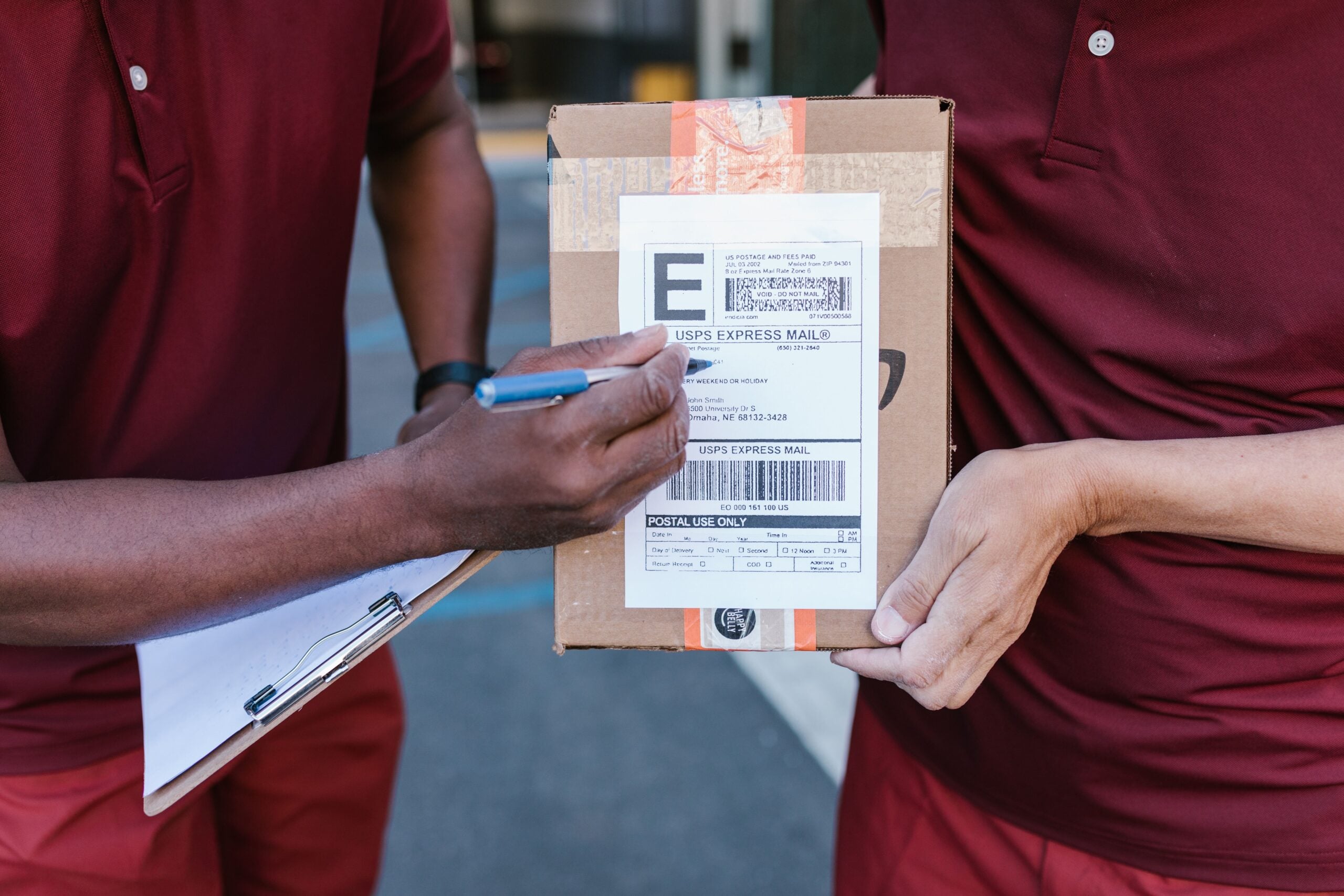
A shipping label is the carrier's instruction sheet for your parcel. It carries the sender and delivery addresses, the service you paid for, the postage, a tracking number and a barcode the carrier scans at every stage of the journey.
That's what makes it different from an address label. You can print an address label from a free shipping label template, but it has no postage, barcode or tracking number. For a parcel that needs tracking, you need a label created by the carrier, or by software connected to your carrier account.
What you need before you start
- The package, packed and sealed, so you can weigh and measure it
- A scale and a tape measure
- The full delivery address, plus your return address
- The full delivery address, plus your return address
- A printer and labels or plain paper, or a phone if you don't have a printer
How to create a shipping label in 7 steps
1. Weight and measure the package
Postage depends on weight, size and distance, so measure the packed box rather than the item inside it. USPS says to accurately measure the size and weight of your package to avoid unexpected fees. Its limits are 70 pounds and 130 inches in length plus girth, and Priority Mail and Priority Mail Express packages must come in under 108 inches.
Large, light boxes can cost more than their weight suggests. For USPS Ground Advantage, a parcel bigger than 1 cubic foot is priced on its actual weight or its dimensional weight, whichever is more. Other carriers have their own rules, so check them before you choose a box.
2. Choose a carrier and service
The service decides the speed and the price. USPS's online tool, Click-N-Ship, covers USPS Ground Advantage, Priority Mail and Priority Mail Express. UPS and FedEx have their own ground and air services. Compare the price and delivery time for your package before you buy, because the cheapest carrier changes with the weight, size and destination.
3. Start the label on the carrier's website
Each carrier has its own online tool:
- USPS: Click-N-Ship needs a free USPS.com account, and USPS says all Click-N-Ship users automatically get discounted commercial pricing.
- UPS: go to Create a Shipment on UPS.com. You can log in or continue as a guest.
- FedEx: occasional shippers can create a label as a guest and pay by card. An account adds shipping discounts, saved addresses and multiple labels at once.
4. Enter both addresses
Put in your return address and the delivery address, then the package details from step 1. USPS's addressing standard, Publication 28, prefers uppercase letters on every line of the address, in a block with a uniform left margin. One wrong digit in a ZIP code sends a parcel the wrong way, so check the address against the order before you pay.
5. Pay for postage and print the label
The standard size is 4 x 6 inches. UPS.com works with most thermal label printers that print 4" x 6" labels, as well as standard laser and inkjet printers. You don't need sticker paper either. USPS says you can print on regular printer paper and tape the label to the box. Our guide to shipping label printers compares a few if you're printing more than a handful a day.
No printer? Each carrier has a way around it:
- USPS: buy postage and get a Label Broker ID to take to a Post Office, or pay $1.65 a label to have a physical label delivered to you.
- UPS: print the label at The UPS Store.
- FedEx: create the label in the FedEx app and show the QR code at a participating location, or have it printed at FedEx Office.
6. Attach the label to the box
Put the label flat on one side of the box. USPS asks you to place it parallel to the longest side of the package, keep all labels on the same side and never fold a label over an edge. FedEx adds that the label should go on the largest flat surface, away from seams and edges, and that you shouldn't cover the barcode with tape, even clear tape, because it can stop the label scanning
If you're reusing a box, cover or black out every old label and barcode. Otherwise a scanner can pick up the wrong one.
7. Drop it off or book a pickup, and share the tracking
Take the parcel to the carrier, or book a collection. USPS offers free Package Pickup, although restrictions apply. Then send the tracking number to your customer, or add it to the order in your store so they get it automatically.
Shipping internationally: add the customs form
International parcels need a customs declaration as well as a label. Click-N-Ship walks you through the customs form as part of creating the label, and USPS now asks for more detailed descriptions of what's in every international package. Have each item's description, quantity, value and, where you know it, its HS code ready before you start.
Creating labels from your online store
If you sell through a platform, you may be able to skip the carrier's website altogether.
- Shopify: you can buy labels from supported carriers in your Shopify admin, including USPS, UPS and FedEx, and buy up to 250 labels at the same time.
- WooCommerce: WooCommerce Shipping is a free extension that prints USPS, UPS and DHL Express labels from your dashboard, for shipments sent from the US.
Both take the address from the order, so nobody retypes it.
When creating labels one at a time stops making sense
Every step above is quick on its own. Done by hand for 50 orders a day, it means weighing, choosing a service, typing addresses and printing 50 times over, and every address typed by hand is another chance for a mistake.
That's the point where shipping software earns its place. Shiptheory pulls each order from your store, marketplace or ERP and uses shipping rules to choose the carrier and service from the destination, weight, order value or SKU. It can book shipments automatically or hold them for your approval, print labels to the right printer as orders are booked, and send the tracking number back to the order.
You keep your own carrier accounts and rates. Shiptheory connects to USPS, UPS, FedEx and DHL Express, and to the stores and marketplaces on our integrations page. For international orders, it sends customs data to the carrier with the booking.
The shift worth making
If you ship a few parcels a week, the carrier's own tools are all you need, and the seven steps above will get every one of them out the door. Once you're printing labels for every order, every day, the work is no longer creating a label. It's making sure the right label gets printed for each order without anyone typing it. See our plans and pricing, which start at $50 a month billed annually, or book a demo to see your own orders booked automatically.
Frequently asked questions
How can I create an online shipping label?
Go to your carrier's website: Click-N-Ship for USPS, Create a Shipment on UPS.com, or FedEx's label tool. Enter the package's weight and size and both addresses, choose a service, pay for postage and print the label. UPS and FedEx both let you check out as a guest. USPS needs a free USPS.com account.
Can I create a shipping label online for free?
The carriers' online tools don't charge for the label itself: you pay for the postage. Extras can cost more, such as the $1.65 USPS charges to post you a printed label. USPS also gives every Click-N-Ship user discounted commercial pricing. A label made from a free template is an address label only, with no postage or tracking.
Can I print a shipping label without a printer?
Yes. With USPS, you can get a Label Broker ID and have the label printed at a Post Office. With UPS, you can print at The UPS Store. With FedEx, you can show a QR code from the FedEx app at a participating location.
Where do I put the shipping label on a box?
On the largest flat side, parallel to the longest edge. Keep it away from seams and edges, don't fold it over a corner, and don't put tape over the barcode. Cover or remove any old labels if you're reusing a box.
What size is a shipping label?
The most common size in the US is 4 x 6 inches, which most thermal label printers print. UPS's WorldShip software also supports 4 x 8 inch labels. If you're using a regular printer, you can print on a letter-size sheet and trim it, or use half-sheet labels.
Do I need a special printer to print shipping labels?
No. Standard laser and inkjet printers work, and USPS accepts labels printed on regular paper and taped to the box. A thermal printer is faster and needs no ink, which matters once you're printing labels every day.
What's the difference between a shipping label and a mailing label?
A mailing or address label shows only the addresses. A shipping label created by a carrier also includes the postage, the service, a tracking number and a barcode, which is what lets the carrier sort and track the parcel.